Yes or No Wheel: Spin for a Fair 50/50 Answer
Pick a question, press Spin, and the wheel lands on Yes or No.
The yes or no wheel is a spinner with two answers, Yes and No, repeated round the wheel. Press Spin (or Ctrl+Enter, Cmd+Enter on a Mac) and it stops on one of them. It is free to use, and it counts every answer so you can see how a run of spins came out.
How to use the yes or no wheel
- Settle the question first, in words that a Yes or No can answer. "Should I start with the report?" works. "What should I do today?" does not.
- Choose the answers. Yes or No is the default. Yes, No or Maybe adds a third answer.
- Press Spin. The wheel turns and the result appears on a card.
- Read the counts. The panel beside the wheel shows how many Yes, No and Maybe results you have had, with a percentage for each. Reset counts clears them.
On a phone the counts and the answer choice sit under the Spin button instead of beside the wheel.
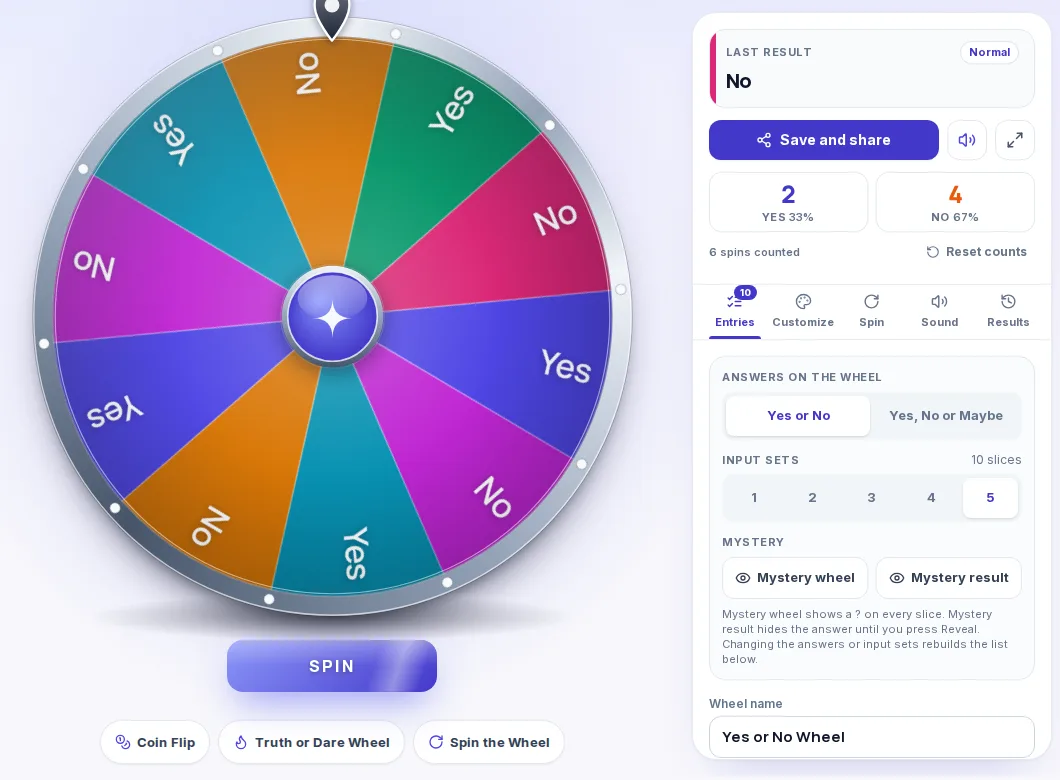
Is the yes or no wheel a fair 50/50?
Yes. With the Yes or No answer set, every spin has a one in two chance of Yes and a one in two chance of No.
Two things make that true. The wheel has the same number of Yes slices and No slices, all the same size. And the result is picked by the browser's cryptographic random number generator (crypto.getRandomValues) at the moment you press Spin, before the wheel starts to move. The animation then turns to the slice that was already chosen, so the speed or timing of your click cannot influence the answer.
With Yes, No or Maybe, each of the three answers has a one in three chance.
One exception is worth knowing. The Entries tab has a Weights button. If you switch weights on and give one answer a bigger share, the wheel is no longer even, and that is the point of the setting. Leave weights off for a fair spin.
Settings that change what you see
Answers on the wheel. Yes or No gives two answers. Yes, No or Maybe gives three. Switching between them rebuilds the wheel and resets the counts.
Input sets. This sets how many times the answers repeat round the wheel, from 1 to 5. The default is 5, which is 10 slices for Yes or No. More sets make the wheel look busier and make each slice narrower. They do not change the odds, because every answer still has the same number of slices.
Mystery wheel. Every slice shows a question mark instead of its answer, so nobody can read the wheel as it turns.
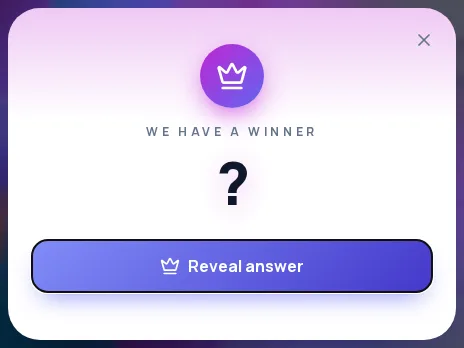
Mystery result. The result card shows a question mark until you press Reveal answer. The counts and the result history only update after you reveal, so a hidden answer stays hidden everywhere on the page.
Other settings come from the same wheel panel used across ShuffleWheel: spin length (Fast, Normal or Slow, roughly 3, 5 or 7 seconds), sound on or off, themes and fonts, and a fullscreen button. The Results tab lists your recent spins. You can also type your own answers into the Entries tab, up to 1,000 entries.
When a yes or no wheel is a good choice
It suits questions where either answer is acceptable and the time spent weighing them costs more than a wrong pick.
- Small personal choices. Whether to do the hard task first, whether to go for a walk before lunch, whether to answer that message now or after the meeting.
- A split group. A class, a team or a family where two options are tied and nobody wants to be the one who decides. Everyone can watch the wheel, which makes the result easier to accept than a coin hidden in someone's hand.
- Games and streams. A viewer asks "should I take the risky route?" and the wheel answers. Turn on Mystery result to add a pause before the reveal.
- Class and meeting routines. A teacher can spin to decide whether to ask one more question, repeat a round or move on. A team lead can spin to decide whether to take a break now or finish the agenda item first.
For a two-step party game, spin here first to decide whether a player takes a challenge. If the answer is Yes, spin the Truth or Dare Wheel for the challenge itself. If it is No, the turn passes to the next player.
It is a poor fit for decisions with real consequences, such as money, health or a job. A random answer says nothing about which option is better. If that kind of decision is on your mind, use the wheel at most to notice how you feel about the result, and make the call yourself.
Use the result to learn what you wanted
A common piece of advice about flipping a coin is to watch how you react when it lands, because that reaction can show what you were hoping for. The same works here. Spin, and notice whether the answer brings relief or a small drop in your stomach. If you feel the drop, the answer you wanted was the other one, and you can simply choose it.
The counts help with a related habit: spinning again and again until the wheel says what you wanted. If the panel shows five spins for one question, the wheel is no longer deciding anything. Name the answer you were hoping for and treat that as your decision.
The simplest fix is to set the rule before the first spin. Decide that the first result is final, or that the best of three counts, and say so out loud if other people are watching. A rule agreed in advance is much harder to bend once an answer you dislike appears.
Other wheels for related jobs
- For more than two options, use the Spin the Wheel tool and list them all, or the Decision Wheel, which shows each option's chance.
- To pick a person, the Random Name Picker takes a pasted list of names.
- For a two-way answer with a coin animation, there is the Coin Flip.
Frequently asked questions
Yes. With the Yes or No answer set, both answers have the same number of equal slices, and the result is chosen with the browser's cryptographic random number generator before the wheel starts to turn. Each spin has a one in two chance of Yes and a one in two chance of No, unless you switch weights on yourself.
Every spin is a fresh 50/50, so a run of the same answer is normal and says nothing about the wheel. The counts panel shows it: six spins can easily come out as 2 Yes and 4 No. Over many more spins the percentages move toward an even split, but a short run is often lopsided. If you want a fair decision, agree on the number of spins before you start.
Yes. Choose Yes, No or Maybe under Answers on the wheel. Each of the three answers then has a one in three chance. You can also type your own answers into the Entries tab, for example "Ask again tomorrow".
Input sets control how many times the answers repeat round the wheel, from 1 to 5. Five sets of Yes and No make 10 slices. The number of sets changes how the wheel looks, not the odds.
Mystery wheel replaces every slice label with a question mark. Mystery result hides the answer on the result card until you press Reveal answer, and the counts and history only update after you reveal it.
It is better kept for low-stakes choices. A random answer does not tell you which option is better, so for decisions about money, health or work it is safer to decide yourself and use the wheel, at most, to check how you feel about an answer.
Press Reset counts under the Yes and No numbers. Changing between Yes or No and Yes, No or Maybe also clears them.
Yes. You can click the wheel itself, or press Ctrl+Enter (Cmd+Enter on a Mac).
Yes. On phones and tablets the answer choice and counts sit under the Spin button, and the rest of the setup opens from the Entries button.