Spin the Wheel: Free Online Wheel Spinner
Type your entries, press Spin, and the wheel picks one at random. ShuffleWheel is a free online wheel spinner: every entry has the same chance by default, and you can remove winners, import a list or share the wheel.
- Free to use
- No account needed
- 2 to 1,000 entries
- Phone, tablet or computer
Random Pickers and Generators
Each tool does one job: pick a name, roll a die, split teams or spin for an answer.
- Random Name PickerPick one name from your list.
- Random Number GeneratorGet a number in your own range.
- Yes or No WheelAsk a question, get yes or no.
- Random Team GeneratorSplit a group into random teams.
- Dice RollerRoll dice for a board game.
- Coin FlipHeads or tails in one tap.
- Truth or Dare WheelTruths and dares, plus your own.
- Random Letter GeneratorGet a random letter from A to Z.
- Random Country GeneratorSpin for a random country.
- Decision Maker WheelSpin to choose and see the odds of each option.
- Random Animal GeneratorSpin for one of 214 animals.
What Is a Spinner Wheel?
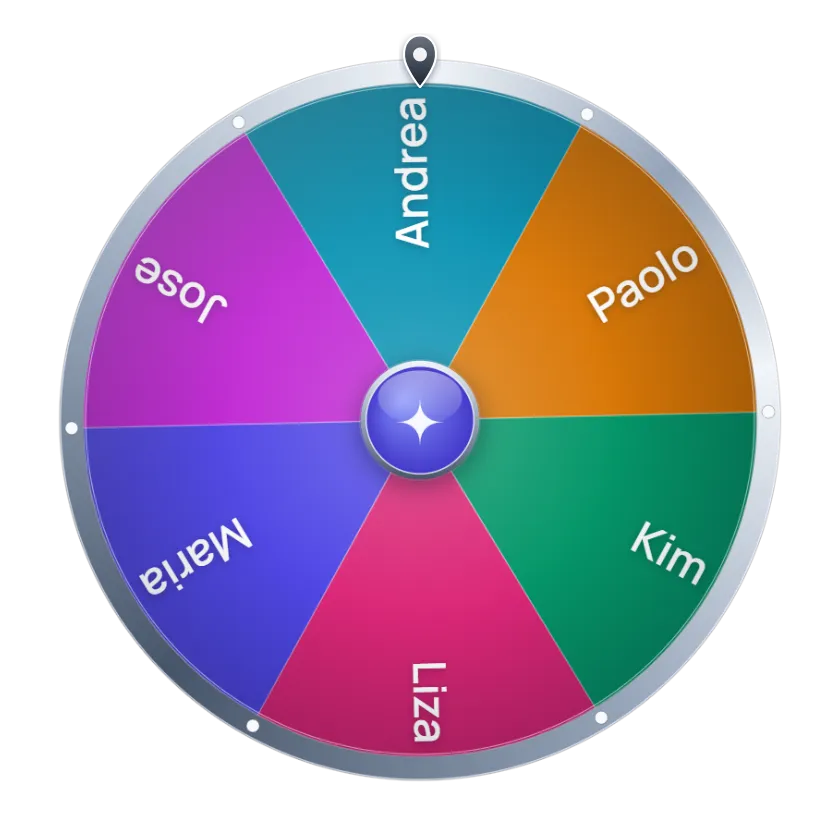
A spinner wheel is a circle split into slices. Each slice holds one entry. You spin it, the wheel slows down, and the pointer stops on one slice. That entry is your result.
It works like the spinner in a board game. The difference is that you write what goes on it. ShuffleWheel puts that spinner in your browser, so you can spin names, prizes, tasks or anything else.
How the wheel picks a winner
The winner is picked the moment you press Spin, by your browser’s secure random number generator. The spin you watch shows that result landing. Every entry has the same chance, unless you turn on Weights.
In Normal mode the same entry can win twice in a row. That is normal in any random draw. Switch to Elimination if each entry should win only once.
How to Spin the Wheel
Three steps, and you do not need to sign up.
 1
1Add your entries
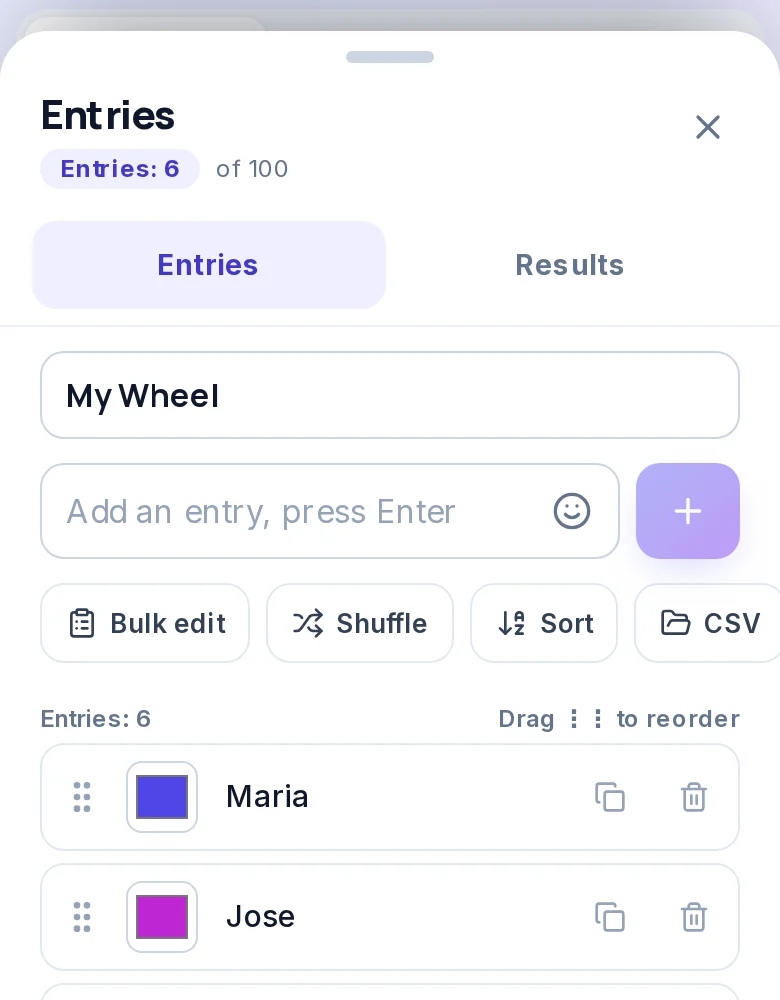
Open Entries, type an entry and press Enter. For a long list, use Bulk edit and paste one entry on each line. One wheel holds 2 to 1,000 entries.
 2
2Press Spin
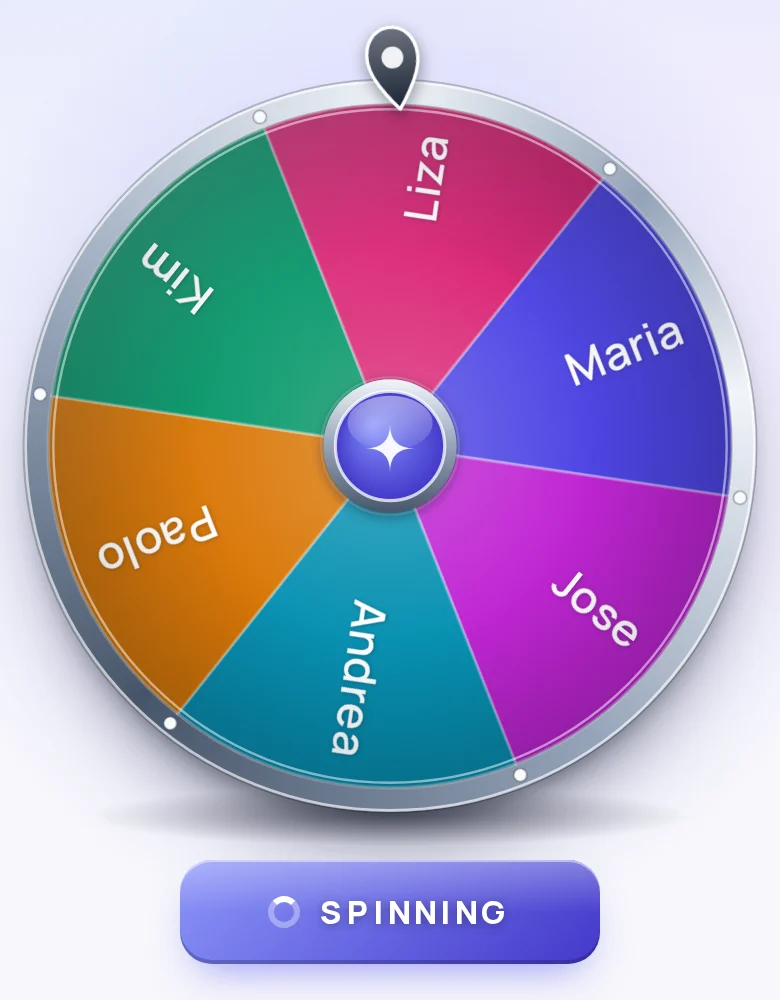
Press the Spin button or tap the wheel. It turns, slows down and stops on one slice.
 3
3See the result
The winner shows in a pop up. Press Remove winner to take it off the wheel, or Spin again.
Wheels With Entries Ready to Spin
These wheels come with entries filled in. Open one, change what you like, and spin.
Make the Wheel Your Own
All of these controls are on the wheel at the top of this page.
Three spin modes
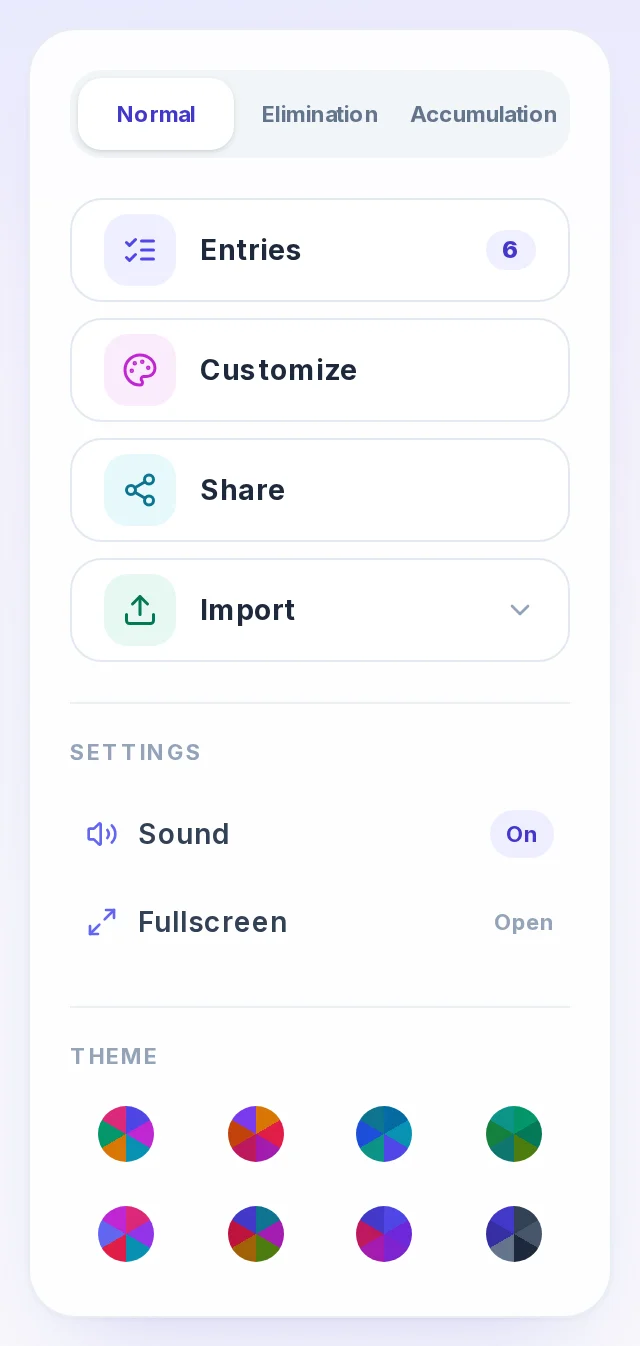
Normal keeps every entry on the wheel. Elimination takes each winner off. Accumulation counts the wins for each entry.
Themes and colors
Pick one of 8 themes, or set the background, text and pointer colors yourself.
Sound
Choose the spin and winner sounds, set the volume, or turn sound off.
Import a list
Add entries from a CSV file, an Excel file, a PDF or a Google Sheets link.
Weights
Give an entry a bigger chance to win when your draw needs it.
Save and share
Save the wheel to get a link. You can also copy an embed code or download a picture of it.
Fullscreen
Show only the wheel, for a class screen or a stream.
Results
See the last winners and how many times you have spun.
Ways to Use the Spinner
A few everyday jobs a wheel does well.
Pick a student
Use Elimination mode so every student gets one turn before anyone gets a second.
Open the random name pickerDraw a giveaway winner
Add each entrant once and spin where people can watch the draw.
Number your entries? Draw a numberGame night
Spin to see who goes first, who picks the next game or who takes the next dare.
Play the Truth or Dare WheelSpin on a stream
Use Fullscreen and share your screen, so viewers watch the spin live.
Run a prize wheel
Add the prizes and spin in front of the room.
Tips for a Fair Draw
- Clean the list first. An entry typed twice has twice the chance. After pasting a long list, press Remove duplicates.
- Show the list and the rules before you spin. Let people read the entries, and say whether a winner can win twice, so nobody argues afterwards.
- Keep a record. The Results panel lists the last winners, and Share saves the wheel as a link, so you can show the same entries and results later.
Frequently Asked Questions
Short answers about how the wheel works and how to use it in class, on a stream or at home.
Yes. Every wheel and tool on ShuffleWheel is free to use. There is nothing to download or install.
No. Open the page, add your entries and spin. You do not need to sign in to save or share a wheel either.
You can add 2 to 1,000 entries to one wheel. With hundreds of entries, the slices get thin, so some text may not show on the wheel. Every entry still has the same chance.
Yes. The winner is picked when you press Spin, using your browser’s secure random number generator, the source browsers use for passwords and encryption. The spin you watch only shows that result landing. Every entry has the same chance, unless you turn on Weights in the entries panel.
In Normal mode, every entry stays on the wheel. So any entry can win again, even on the next spin. Use Elimination mode or press Remove winner if you want no repeats.
No. The names and options you type stay in your browser. They are only stored on our server if you press Share to save the wheel and get a link, so the link can rebuild your wheel.
Yes. Open Import and add entries from a CSV file, an Excel file, a PDF or a Google Sheets link. Then press Spin.
Press Remove winner after the result shows. The name comes off the wheel, and you can spin again.
Yes. Press Share to save the wheel and get a link. Open that link later to get the same entries and colors back.
Yes. The wheel runs in your web browser. You can use it on a phone, a tablet or a computer. There is no app to install.
Yes. Open Customize to change the slice colors, the wheel background, the text color and the pointer color. You can also switch themes.
Yes. Add each entrant once, then spin where people can see it. Check your list before you spin, and follow the giveaway rules of the platform you use.
Still have a question? Contact us